Repository navigation
Importing maps in Blender
In this tutorial we will be importing a Counter-Strike 1.6 map with textures etc. into the free 3D content creation suite Blender, using Nem's free Crafty tool.
The following steps would be very similar if you was doing them for some other Half-Life 1 mod or a Source engine game (i.e. Counter-Strike Source.
Obtain and install a copy of Blender. When making this tutorial Blender 2.49 was used.
If you are new to Blender you might want to have at least a peak at the 3D Viewport and the Vital Functions video tutorial in their getting started section, so you know how to move and look around in the Blender 3D space and how to add some lights and get a picture rendered: http://www.blender.org/education-help/video-tutorials/getting-started/
Obtain and install a copy of Nem's free Crafty tool, which calls itself a material / model / file browsing utility for Half-Life modders, but is far more than that, which we are just about to see.
Crafty 1.0.1 was used when writing the tutorial.
For the what we do in the tutorial Crafty will be pretty straight forward and easy to use.
Allright, we'll start of by exporting the map using Crafty, however, we'll have to set it up first.
I am assuming you already downloaded, extracted and launched Crafty.
First we have to tell Crafty which game we are doing this for by selecting a profile from the Setup menu entry, in our case Counter-Strike:
Object Viewer menu -> Setup -> Profile -> Counter-Strike
Next we need to check the options:
Object Viewer menu -> Setup -> Options -> File System group box
Make sure that the Steam Directory is selected and enter common as User Name.
Due to Steam updates CS 1.6 is not using the .gcf file layout anymore, so we need to manually mount the required folders now. Open the File Browser:
Object Viewer menu -> View -> File System Browser
In the File Browser mount the Half-Life folder that is located in s.th. like C:\Program Files\Steam\SteamApps\common, to do that use the following menu entry:
File System Browser menu -> File -> Open -> Folder
Open Crafty's File System Browser:
Object Viewer menu -> View -> File System Browser
In the File System Browser open root / Half-Life / cstrike / maps in the left pane and double-click on the de_dust2.bsp entry, since dust2 is the map we want to use for this tutorial.
It may take a few seconds until Crafty has finished loading the map and is displaying it in the browser.
Now export the map in the object viewer:
Object Viewer menu -> File -> Export
Select OBJ Files (*.obj in the file types drop-down and may be select a empty folder before entering de_dust2 as file name and hitting save, since also textures will be exported.
In case everything went well you should have got a de_dust2.obj and few other files (mostly textures) in the folder you selected.
You can close Crafty, since we are done here, at least for the scope of our basic tutorial (advanced users might want to check the export options tab in the Crafty setup later on).
Okay, now we are going to import the map into Blender, which I assume you already installed and launched.
I don't want to fiddle too much with Blender details here, since Blender is a universe of it's own (as said above check the getting started video tutorials on their page).
So we are just cleaning up the initial setup a bit before importing:
- move the mouse over the view and press the [a] key and then the [x] key to delete all objects in the currently selected layer.
It's time to import the map!
Open the .obj import dialog:
Blender menu -> File -> Import -> WaveFont (.obj)
Browse to the folder, select the de_dust2.obj, that we created with Crafty, and hit the Import a Wavefront OBJ-button.
And now here is the part where we need to pay a little bit of attention and push the right buttons and enter the right value to save us a few headaches (see screenshot bellow):
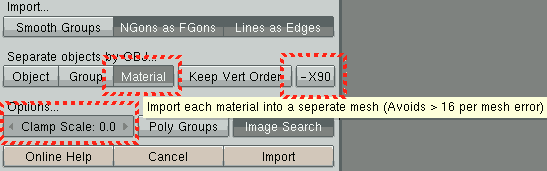
- Make sure that the Material-button is pushed-in, so the meshes / polygons get grouped by material, otherwise we would run into rendering problems later on
- Enter 0 into the clamp text box as value. The auto scaling would just cause problems, we will scale it afterwards.
- Click the the -x90-button, to make it pushed-out, so we don't need to rotate the map afterwards.
- Hit import
If you see nothing rotate the view around a bit, it's because the map is not scaled yet, we will fix that in the next section.
Okay, now we will parent the map to an Empty-object in order to make it easy to scale the whole map we just imported:
Blender menu -> Add -> Empty
- Move the mouse over a view window
- press [a] to select all objects in the layer
- hold [shift] + [right click] the empty (the thing with the arrows) we just added and then press [CTRL]+[P] and confirm "Make parent" by clicking on it
And now we scale the Empty-object and thus scale the whole map:
- Right click the Empty object we added go to the Object -> Transform properties
And scale x,y and z with by 0.01.
You should get s.th. like shown on the left bellow:
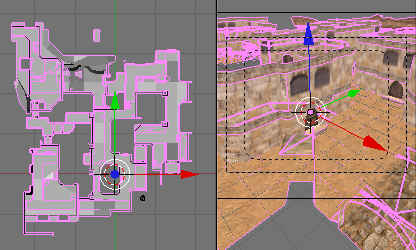
And at least as far as the scope of the importing maps into Blender tutorial goes we are done for now.