Slack
In general
Slack is an important part of GitLab’s strategy for communication between team members. As such, extra care needs to be given to ensure the safety and integrity of data.
Start here
New to Slack? A workspace brings people and conversations together. Channels organize conversations by topic, while direct messages (DMs) are conversations with specific people. Threads keep replies together under a message.
- Set up your profile so other team members can recognize you.
- Find and join channels for your team and interests.
- Learn how to reply in threads and use mentions.
- Set your notification schedule to match your working hours.
Read GitLab’s Slack communication guidelines before posting. Slack is asynchronous; you do not need to read everything or expect an immediate reply.
Profile
Fill in your Slack profile, as we use Slack profiles as our Team Directory to stay in touch with other team members. Use an unobscured photo of your face rather than an artificial avatar, for better human connection and easier recognition. See Slack’s guide to uploading a profile photo.
To open your Slack profile on desktop:
- Select your profile picture (avatar) in the left sidebar.
- Select Profile from the menu.
For desktop and mobile instructions, see Slack’s guide to editing your profile. Use desktop to edit custom fields in About me; Slack’s mobile apps do not support editing custom profile fields. GitLab’s profile includes a Pronouns field in both Edit your profile and About me.
Edit your profile
In your profile, select the first Edit button on the right.
- Full name. Enter your full name.
- Display name. Use a nickname if you prefer to be addressed by one, or combine it with your full name:
nickname (full name). - Title. Use your GitLab job title, including your department and team name.
- Pronouns. Consider adding your pronouns to help create a more inclusive environment.
- Name recording. Consider adding a recording to help with name pronunciation.
- Name pronunciation. Consider adding a pronunciation guide, e.g.
MY-kul FREED-rickfor Michael Friedrich in English. - Time zone. Help other GitLab team members see when you’re available.
Contact information
In your profile, select Edit next to Contact information.
- Phone (optional). Add your personal phone number, including the country code.
About me
In your profile, select Edit next to About me.
- Location (optional). Add your city, state or province, and country.
- Job Description. Add display text and a URL, e.g. Developer Advocate.
- Address (optional)
- G-Cal booking. If you use Calendly, add your booking page URL and display text such as
Book a meeting. Otherwise, leave this field blank. - Pronouns. Consider adding your pronouns to help create a more inclusive environment.
- Spoken Languages. Add the languages you speak to help with cross-functional work with external audiences.
- Hobbies (optional)
- Working hours. Help others identify the times you are generally available.
- README Link. Link to your personal README, where others can learn more about you, with display text such as
About me. See the README overview. - GitLab Birthdays. Opt in or out of the birthday celebrations in Slack by selecting yes or no.
Complete your Slack profile during onboarding as part of completing your team member profiles. Keep it current when your role, team, or working hours change. Fields marked optional and suggestions to add pronouns or name pronunciation remain your choice.
Channels
Channels are a core feature of Slack. This section describes tools and tips for managing Slack channels. For common channels and where to ask questions, see GitLab Slack channels and their purposes.
Browse Channels
To browse public channels, select Directories from Home, then select the Channels tab.
Search by channel name or description, or select a channel to preview it before joining.
Select Join channel to join a public channel. To join a private channel, ask an existing member to add you.
Feel free to ask for recommendations from other team members for their favorite channels.
Every team member is automatically added to the #company-fyi and #whats-happening-at-gitlab channels, where announcements are made and information for the entire company is shared.
There are also a few default channels that every new hire is added to, such as: #celebrations, #new_team_members, #questions, #random, & #thanks; these channels are optional, but we think they are a great place for team members to interact and get to know each other.
Threads and mentions
A thread groups replies under a message so a conversation is easier to follow. To reply on desktop, hover over the message, select Reply in thread, and send your reply there. See Slack’s guide to using threads.
- Reply in a thread when responding to an existing question or discussion, following GitLab’s Slack communication guidelines.
- Mention someone by typing
@and selecting their name when you need their attention. If you are only referring to them, write their name without a mention. - Use
@hereand@channelonly for urgent and important messages. See GitLab’s guidance on respecting others’ time. Slack messages are asynchronous; do not expect an immediate reply.
Organize Channels in Sidebar Sections
Use custom sidebar sections to group channels and direct messages. Open a channel or direct message, select the star icon (or the emoji for its current section) at the top, then select Create new section. Name the section and select Create.
Feel free to organize this with your most frequent used channels, or specific team grouping. You can drag and drop and also hide sections. You can for example create the info section and add #company-fyi and #whats-happening-at-gitlab as channels. Additionally, add the team section and move all related channels there.
Choose the action that fits what you need:
- Star a conversation to keep it easy to find in the Starred section. See starring channels and direct messages.
- Mute a conversation to reduce notifications from it. See muting channels and direct messages.
- Mark all messages as read with
Shift+Escon desktop when you want to clear unread indicators across Slack. This marks messages as read even if you have not read them.
For example, group your conversations into three custom sections based on their purpose:
- Channels important to my job (e.g. a team member in Product and Technical Marketing may star
#marketing,#gitlab-gtm,#ask-product-and-technical-marketing,#external-comms,#handbook) - Channels important to GitLab (e.g.
#company-fyi,#whats-happening-at-gitlab,#team-member-updates,#ceo,#field-fyi,#engineering-fyi,#thanks) - Channels important to my interests (e.g.
#travel,#parenting,#women,#diversity_inclusion_and_belonging,#music,#dog,#i-made-this,#all-caps,#lego)
Sort channels and direct messages with stars
To star a direct message or channel, open it and select the star icon at the top of the conversation. If you use custom sections, select Starred from the menu. For details, see Star channel or direct message.
Channels Access
In addition to GitLab team-members, designated groups such as the Core Team members and advisors outside of GitLab may be granted access to our Slack channels.
However, internal channels that start with #a_ will be restricted to GitLab team-members who have been invited to those channels only.
Any confidential conversations regarding our customers should be restricted only to #a_ channels.
The rationale for internal channels is that it could be a breach of many of our contracts for third parties to have knowledge of GitLab customers.
This is especially the case when third parties could be customers’ competitors.
Invite
There are multiple ways to invite people into a Slack channel.
The easiest way is to use the invite command by typing /invite @jenny.
Avoid inviting people through a mention message.
E.g. @jenny as it can create a message that distracts others.
Change Group DMs to Private Channels
If you are in a group direct message with multiple people, you can change it to a private channel, in order to avoid extra pings and allow additional team members to be added or removed to the channel.
In Slack Enterprise Grid, if you start a group DM and then it is converted to a channel, the channel ends up in “all workspaces”. “All workspace” channels have no retention limit, which contradicts our policy of 90 day retention. To remediate this, we have a script that will daily move the channels into our main GitLab workspace. If you are in an affected channel, you will receive a message from Slackbot that states:
"Slack Owner has removed #<channel> from all other "GitLab" workspaces using the channel management tool. Only people from "GitLab" can access the channel now. Learn more."
Do not convert group DMs to private channels within the “GitLab - Finance” workspace or any secondary workspace as they will be converted and end up in our main “GitLab” workspace. Instead, start a new private channel and add the participants to it.
Change private channels to public channels
Only Slack administrators can change a private channel to a public channel.
To request that an existing private channel be made public, submit an access request.
Managing noise and creating focus in Slack
Slack can be a disorderly place in its default state. Consider implementing the below to add structure and focus, but remember that there will likely be more useful information shared on Slack than you are able to ingest and process on a daily basis, regardless of your approach.
While an intentional effort to organize is important, remember that it’s impossible to know everything. As a team, we may spot information that is missed by others, and we should surface that information when pertinent as we strive to see others succeed. For managing Slack channels, consider blocking a set period of time to review certain channels that makes the most sense for you (i.e. multiple times a day, daily, weekly).
Below are helpful links to best practices and tips on managing your notifications and reducing noise in Slack. We encourage you to regularly check your notification settings to ensure you get more notifications of what is important/relevant to you, and less of what isn’t.
- Reduce noise in Slack
- Configure your Slack notifications
- Display only unread conversations
- Brendan O’Leary on how he uses Slack
Display only unread conversations
With lots of channels and direct messages, Slack can become overwhelming. To help keep track of activity on Slack, and to simplify the interface, consider displaying only unread conversations.
Slack Reminders
Slack reminders help you to remember things without having to keep it all in your head.
You can set reminders for yourself or for a channel.
For a personal reminder, open Later and select the plus sign to choose a date, time, and reminder text.
For a channel reminder, use /remind [#channel] [what] [when].
For details, see Slack’s guide to setting reminders.
Set aside time to work through notifications
Building dedicated time into your day can help minimize the distractions that Slack can create. Consider using a 15 or 30 minute block in your morning or afternoon to enjoy a cup of coffee and catch up on messages you might have missed. When the time you set comes to an end, close out of the Slack app and move on to your next project. Having a set end time can help you feel more in control, and serves as a reminder that it’s impossible to know everything
Scheduled Slack Messages
When working in an all-remote environment it can be sometimes difficult to draw the line between home and work, and it can be especially tempting to check Slack messages after hours. To foster a more inclusive environment at GitLab, we can avoid sending messages outside of the recipient’s working hours by composing a message but not sending it until the recipient begins their working day. In Slack, you can schedule messages to be sent later, which helps reduce immediate disruptions. You can still edit, delete, or cancel scheduled messages before they are sent, making it a very family-friendly tool to use. This approach aligns with our bias towards asynchronous communication.
It’s simple: when composing a message, click the arrow icon (next to the paper plane icon) to schedule it for a later time.
For more details on scheduling messages in Slack, please refer to Slack help.
Minimize Visual Distractions
Animated images and emoji can add meaning to conversation, but they can also be distracting. If you would prefer to have static images and emoji, disable the animation. For details, see Manage animated images and emoji.
Slack Status
Use a Slack status to share a message and emoji with your fellow GitLab team members. Your status is separate from the availability indicator that shows whether you are active or away.
If you’re off work for a holiday or vacation you can update your status by using Time Off by Deel. This is a great way to let your team know whether you are available.
To have your Slack status automatically set to “In a meeting” based on your Google Calendar, add the Google Calendar app to your Slack account.
Do Not Disturb Hours
Pause notifications when you need to focus or are away from work. On desktop, select your profile picture in the sidebar, hover over Notifications, and choose a duration or Custom.
For regular quiet hours, open Preferences from your profile menu and set your notification schedule under Working hours. A sender can override paused notifications for an urgent direct message once per day. See Slack’s guide to pausing notifications and setting a schedule.
Quick Switcher
Quick Switcher is a great feature to know about if you want to get productive with Slack. As the name suggests, it allows you to switch between channels and direct messages quickly. Invoke it withCmd+kon Mac orCtrl+kon Windows or Linux and start typing the name of the person to chat with or the channel you are interested in. You can then navigate the suggestions with↑and↓keys and hitenterto select.
Unfurling Links in Messages
Unfurling is Slack’s automatic display of a link preview alongside a URL in a message. A preview can show details such as the page title, description, or image. To remove a preview on desktop, hover over it and select the x on its left side. See Slack’s guide to sharing links and managing previews.
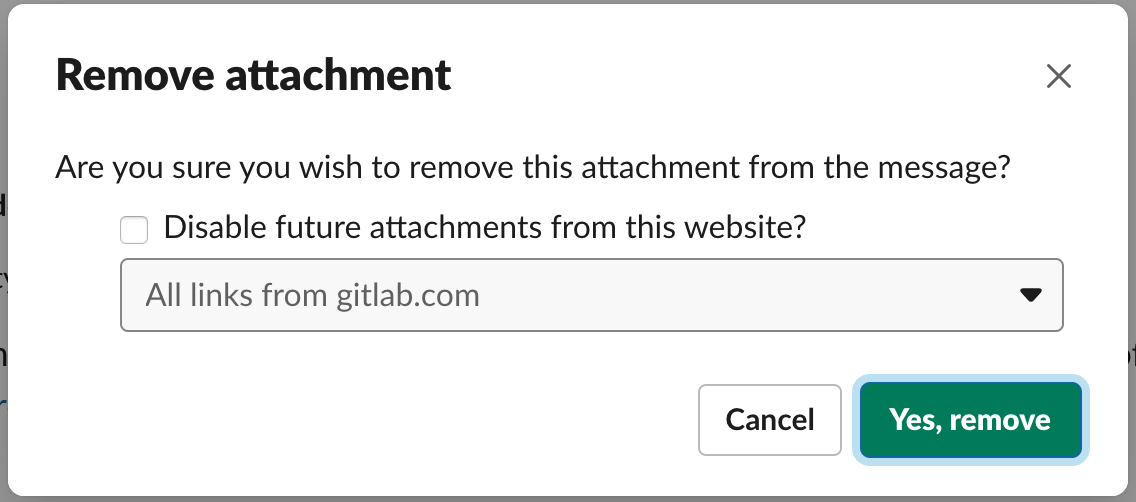
In the confirmation prompt you may also see a checkbox to “Disable future attachments from this website”. As a workspace admin if you select the disable option this will denylist the link/domain across the workspace and will impact every user. If you do happen to denylist a link or a domain, they can be modified in the Workspace admin portal under Settings & Permissions.
If you see a team member share posts with multiple link previews that you think are distracting, in channels like #whats-happening-at-gitlab, consider acting in the spirit of Everyone is a moderator and either:
- Letting them know in a DM that it’s adding noise to their message.
- Reacting to their message with the
:consider-removing-link-previews-to-keep-the-channel-tidy-please:emoji.
Custom theme
The interface colors can be customized in Slack. This is especially useful when using multiple slack accounts, setting up different themes makes it really easy to differentiate them instantly. The theme selector is available under Preferences > Themes.
In order to setup a GitLab theme, send yourself the following message: #643685,#634489,#FC6D26,#ffffff,#71558f,#ffffff,#FCA326,#e24329, and press the Switch sidebar theme button.
Slack Apps
Many applications can integrate with Slack. Use these apps for meeting reminders, finding information, and team workflows. The Slackbots section covers automated keyword responses separately.
- Google Calendar - By integrating your calendar with Slack, you’ll get notifications about meetings directly in Slack.
Most important - 1 minute before a meeting begins, you’ll receive a message with the meeting info, including a link to join meetings that are occurring in Zoom.
You can set up the integration by typing
/gcalinto any message field. - Workday - Enter time off through the Slack integration. Follow the handbook instructions for entering PTO in Workday.
- Claude - Get help with drafting, reasoning, and coding. See the Claude handbook guide for general access and usage guidance.
- Glean - Search GitLab’s internal knowledge with
/gleanin a channel, or mention@Gleanto ask a question. See the Glean handbook guide for Slack setup and response settings. - GitLab Duo - Use GitLab Duo in Slack where enabled to ask questions about projects and summarize discussions. See the GitLab Duo in Slack documentation for prerequisites and usage instructions.
Need to add a new app to Slack
GitLab has chosen to restrict the ability to install apps, and we have a process to approve or restrict certain apps for our workspace. In order to add a new app to Slack, you need to create a vendor approval issue. Once that’s approved by all parties, please request approval to add the app to Slack:
- Make sure the app hasn’t been pre-approved by our team by clicking on Apps in the left sidebar and find Available Apps. To find pre-approved apps in the App Directory, click Pre-Approved below Categories in the left column.
- If the app isn’t pre-approved, you can click on Add to Slack.
- Add a custom message with more context about your request and also link the vendor approval issue.
- Click Submit. You’ll receive a direct message from Slackbot when your request has been reviewed by the team.
Please note that this is only required for new apps that have not been reviewed or approved. If your request is to add a new process or update an existing process for how an application works in slack, please refer to our Business Technology Change Management process.
Slackbots
We have a few slackbots to help us with frequently asked questions and other slackbots that directly help us to remain inclusive in our language and align closely with our Diversity, Inclusion and Belonging Value. The following list is reflective of the ones we use for Diversity, Inclusion and Belonging and the suggested changes to use. This list is representative, not complete; terms will be added and removed as we iterate on the list. As a GitLab Team Member, you can view the active slackbots that we use in Slack, under: GitLab > Customize Your Workspace > Slackbot.
| hey guys, hi guys, you guys, salesman, salesmen, businessman, businessmen | Are you including people of multiple genders? Please consider using “everyone,” “team,” “y’all,” or similar instead. You can read more about inclusive language in our handbook |
| on your toes, on anybody's toes | It’s probably okay.
As companies grow, their speed of decision making goes down since there are more people involved. We should counteract that by having short toes, and feel comfortable letting others contribute to our domain. |
| aggressive | Did you mean ambitious? |
| gitlabber, gitlabbers | The term gitlabber is a commonly misused term. Please use “GitLab team member” instead. You can read more about this in our handbook |
Security
Sign-in requirements
Every 90 days, all users will be logged out of Slack and will need to re-authenticate on each of their devices via Okta. This is to ensure that all BYOD devices are registered with a current Okta Verify client and are visible in the Okta Administration dashboard. It will also ensure that there are no indefinite sessions on devices temporarily exempted from Okta Verify Device Trust.
Profile deletion
Beginning in December 2024, and going forward in June and December of each year, CorpSec will request from Slack support to delete profiles that have been deactivated for more than five years. For former team members who have left GitLab less than 5 years ago, we will use the API to remove all fields except for Name, GitLab Email, Title and GitLab.com username, which will remain for current team members to find historical context on earlier epics, merge requests and issues.
3a41dce6)
