

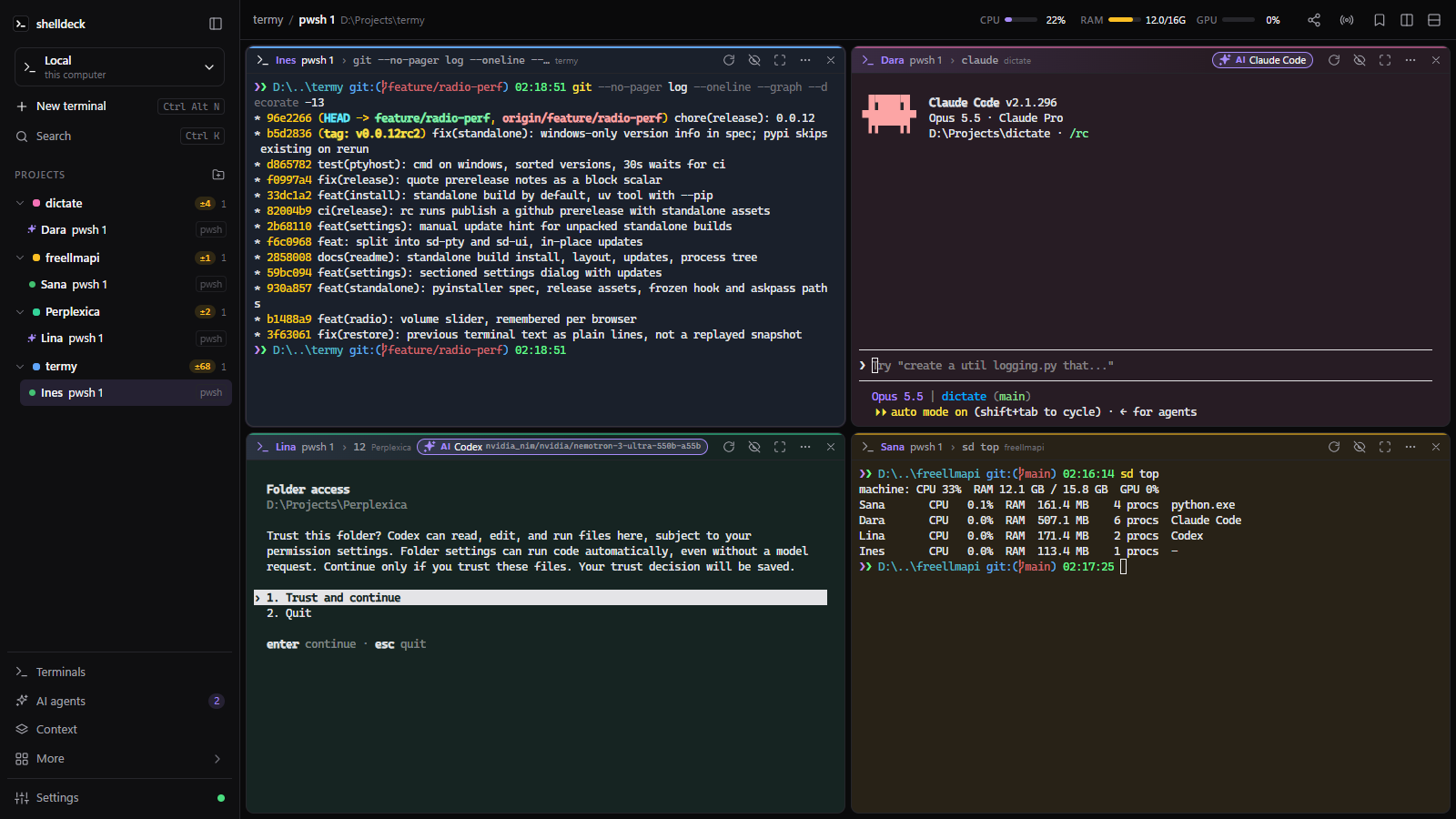
Your terminals, organised by project. In the browser, on your own machine.
Real shells (PowerShell, cmd, Git Bash, WSL, bash, zsh, fish) grouped by project,
in split or floating panes that survive restarts, with your AI coding agents working side by side.





Install · Features · CLI · Remote access · Security · Contributing
| Windows (PowerShell) | Linux | |
|---|---|---|
| Standalone (default) | irm https://raw.githubusercontent.com/codejunction/shelldeck/main/install.ps1 | iex |
curl -fsSL https://raw.githubusercontent.com/codejunction/shelldeck/main/install.sh | sh |
| uv tool | & ([scriptblock]::Create((irm https://raw.githubusercontent.com/codejunction/shelldeck/main/install.ps1))) -Pip |
curl -fsSL https://raw.githubusercontent.com/codejunction/shelldeck/main/install.sh | sh -s -- --pip |
- Standalone: a self-contained build, no Python or uv needed. It updates itself from Settings › Updates.
- uv tool: the Python package (
uv tool install shelldeck,pipx install shelldeck, oruvx shelldeckto try it). Update withuv tool upgrade shelldeck. Plugins only work in this mode. - macOS (untested) gets the Python package; there is no standalone build for it yet.
- Needs Windows 10 1809+ (ConPTY) or Linux x64, and a modern browser.
Standalone layout, installer options, updates
The installer downloads shelldeck-<version>-windows-x64.zip or -linux-x64.tar.gz from the latest GitHub release, checks its .sha256, unpacks it into %LOCALAPPDATA%\shelldeck or ~/.local/share/shelldeck and puts that folder on PATH:
shelldeck/
  current.txt              the version in use, e.g. 0.0.12
  sd.cmd, sd               shims that run versions/<current>/sd, so `sd` and agent hooks survive updates
  versions/
    0.0.12/                shelldeck, sd-pty, sd-ui, sd (+ .exe on Windows) and _internal/
Environment variables: SHELLDECK_VERSION=0.0.12 (a specific release, release candidates included), SHELLDECK_ROOT=<dir>, SHELLDECK_NO_MODIFY_PATH=1, SHELLDECK_ARCHIVE=<file> (a downloaded archive). Running the installer again installs the newest release next to the old one.
Updates. Standalone: Settings › Updates (or the Update now toast) downloads the new release, checks its sha256, unpacks it next to the running one and restarts only the web app; terminals and their programs keep running. uv: uv tool upgrade shelldeck, then sd restart. Release candidates: SHELLDECK_VERSION=0.0.13rc1 with the installer, or uv tool install --force shelldeck==0.0.13rc1.
Processes. shelldeck supervises sd-pty, which owns the shells, and sd-ui, the web app, which restarts on its own. Task Manager shows all three. sd restart restarts only the web app; sd stop stops everything.
sd                 # start shelldeck in the background and open it in your browser
sd ~/code/api      # add a folder as a project and open a terminal in it
The first visit asks you to create a password. Terminals keep running in the background until you close them, even with the browser closed.
- Real shells per OS. Windows:
pwsh, Windows PowerShell, cmd, Git Bash, WSL (any distro). Linux: every shell in/etc/shells. - Tiled or free layout. Split, drag titles to split or swap, maximize; or floating windows on a canvas with Tile all.
- Nothing gets lost. Closing the tab keeps terminals running. After a restart or reboot each terminal reopens in its last folder with its previous text above a "restored" line. Updates restart only the UI, so shells don't even notice.
- Shell integration (pwsh, PowerShell, cmd, bash, zsh, fish): the pane title shows the last command (red if it failed),
Ctrl+Shift+Up/Downjumps between prompts, and your own prompt still loads. - Background terminals (
Ctrl+Alt+W), replay the last command (Ctrl+Alt+P), port chips for dev servers, clickable paths (src/app.py:12:5, tracebacks) that open in VS Code or the built-in editor.
 |
 |
Command palette (Ctrl+Shift+P) |
? menu with Ask, right at the prompt |
 |
 |
Search every terminal's output (Ctrl+Shift+F) |
Built-in editor and markdown viewer (sd edit, sd view) |
?menu and Ask. Type?on an empty prompt for shelldeck's commands, bookmarks and plugin commands at the cursor. Type a question instead and Ask has an installed agent's model (Claude, Codex, Gemini or Devin; Settings › AI agents) write one command for that shell and OS. Enter types it, Shift+Enter runs it.Ctrl+Iopens just the Ask box;sd ask "..."prints the command.
- Projects sidebar with a color per project (sidebar dot, pane border, background tint), added through a folder browser and reordered by drag.
- Git at a glance. A
±Nchip on projects with uncommitted work; the git dialog shows changed files with their diffs, and the full commit graph with one-click checkout. - Machines. The picker above New terminal switches between this computer and your SSH machines (Linux; key, agent or a password typed in the terminal, LDAP names like
CORP\jdoework). Windows machines open as RDP desktops. Test connection checks the network and the login. Passwords are never stored.
 |
 |
| Git graph with one-click checkout | Uncommitted changes and diffs |
 |
 |
| Machine picker | Remote systems (SSH and RDP) |
- Detected automatically. A terminal running Claude Code, Codex, Devin, Gemini, Copilot, Cursor Agent, opencode, Aider, Amp, Qwen, Goose, Droid, Crush or Kiro gets an AI chip with the model and how full its context window is.
- Needs-you alerts. Only when an agent asks something (a permission prompt, a question, a
[y/n]): an amber chip, a chime and a toast or desktop notification. The sidebar and Open next rank agents by who needs you. - Exact state from hooks.
sd integration installhooks Claude Code, Codex, Gemini and Devin so they reportworking/blocked/donethemselves, and can be resumed after a restart. 15 more agents have preview hooks. See docs/agent-integrations.md. - Agents talk to each other. Each terminal has a name (Maya, Kofi…). From inside one,
sd agents,sd peek,sd tell,sd spawn "task" --model small|medium|large(a sub-agent in a new pane),sd handoffandsd done. A sub-agent's questions go to its parent agent, not to you. shelldeck installs ashelldeckskill so agents know these commands. - Context that outlives the agent. Each project keeps a task, next step, facts, decisions and recent activity (commands, tests, edited files from the hooks; never output or secrets) in a local database and in
.shelldeck/*.md. A new agent runssd contextand continues.sd recallsearches every project;--smartadds keywords from an agent's smallest model. No model runs inside shelldeck.
 |
 |
| AI agents: status, integrations, launch with a model | Context: what the project is working on |
- Task manager (
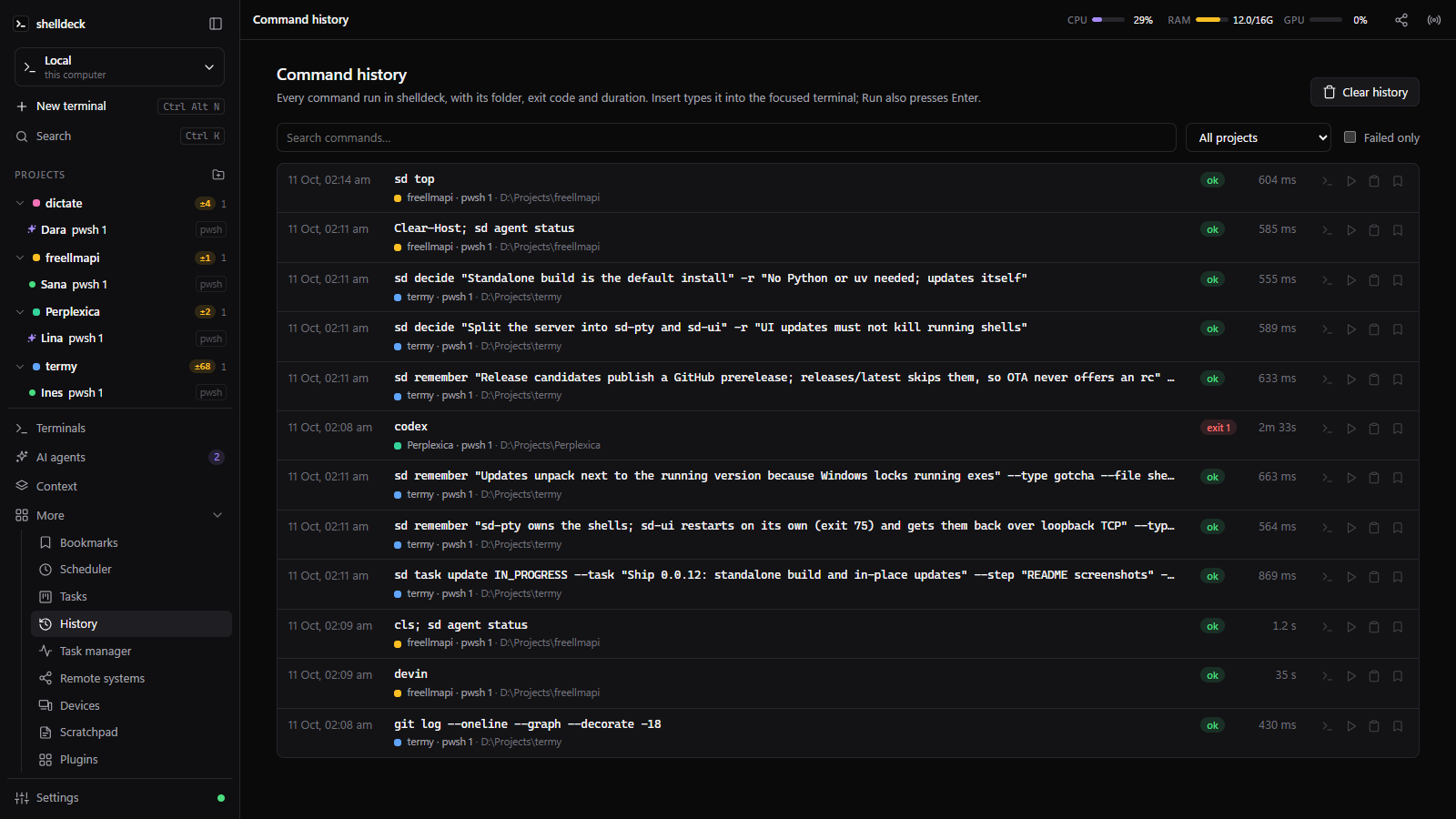
Ctrl+Alt+M,sd top): CPU, RAM and NVIDIA GPU for the machine and each terminal's process tree, with agents and ports. - Bookmarks (insert, or Shift+Enter to run), Scheduler (cron jobs in a project folder, with logs), Tasks (a board with due dates, reminders and Send to agent), Command history with exit codes and durations, Scratchpad (markdown notes; agents add with
sd notes). - Radio. The top-bar radio plays cliamp channels; your browser streams them directly.
- Devices. Every signed-in browser, which one is in use, and Sign out.
- Plugins. Python packages add
?menu andsdcommands and react to events. See Plugins.
 |
 |
| Task manager, per terminal | Task board |
 |
 |
| Bookmarks | Scheduler |
 |
 |
| Command history | Scratchpad |
 |
 |
| Settings | Radio |
 |
 |
| Share over a Cloudflare tunnel | Devices |
A plugin is a Python package with a shelldeck.plugins entry point. Its commands show up in the ? menu (?docker logs web) and the CLI (sd docker logs web), and return text to show or a command line to type.
# pyproject.toml: [project.entry-points."shelldeck.plugins"]  docker = "shelldeck_docker:plugin"
from shelldeck.plugins import Plugin

plugin = Plugin("docker", "0.1.0")

@plugin.command("logs", "Follow a container's logs", usage="<container>")
def logs(args, ctx):  # ctx: session_id, cwd, shell, project
    return {"input": "docker logs -f " + " ".join(args)}
Install into shelldeck's environment (uv tool install shelldeck --with ./examples/shelldeck-docker) and restart. The Plugins page and sd plugin list|enable|disable manage them. Plugins run with your permissions; install only ones you trust. Guide: docs/plugins.md.
Keyboard shortcuts
| Keys | Action |
|---|---|
Ctrl+Shift+P |
Command palette (Ctrl+K also works outside a terminal) |
Ctrl+Alt+N |
New terminal in the current project |
Ctrl+Alt+\ / Ctrl+Alt+- |
Split right / down |
Ctrl+Alt+Arrows |
Focus the pane in that direction |
Ctrl+Alt+1…9 |
Focus pane 1–9 |
Ctrl+Alt+Enter |
Maximize / restore the pane |
Ctrl+Alt+Q |
Close the focused terminal (offers the background when a command runs) |
Ctrl+Alt+P |
Replay the last command |
Ctrl+Alt+W |
Send the terminal to the background (keeps running) |
Ctrl+Alt+B |
Bookmark picker (Space selects several, Shift+Enter runs) |
Ctrl+Alt+E |
Toggle the sidebar |
Ctrl+Alt+S / Ctrl+Alt+T |
Scheduler / Tasks |
Ctrl+Alt+M |
Task manager |
Ctrl+Alt+R |
Command history |
Ctrl+Shift+F |
Search all terminals |
? / Ctrl+I (empty shell prompt) |
Command menu with Ask / just the Ask box |
Ctrl+Alt+, |
Settings |
Ctrl+Alt+L |
Lock |
Ctrl+Alt+H |
Show shortcuts |
Ctrl+C / Ctrl+V |
Copy the selection (otherwise sends Ctrl+C) / paste |
Ctrl+F |
Find in the terminal |
Ctrl+Shift+Up / Down |
Jump to the previous / next prompt |
In the sidebar, Ctrl+click or middle-click a terminal to open it in a split. Right-click a project or terminal for its menu.
Settings
| Setting | Values | Default |
|---|---|---|
| Theme | dark, light, system | dark |
| Terminal colors | default (follows theme), Dracula, One Dark, Nord, Gruvbox Dark, Solarized Dark, Solarized Light, GitHub Light | default |
| Terminal font / size | any installed monospace font / 8–32 | Cascadia or Nerd Font / 13 |
| Pane layout | tiled, free | tiled |
| Project colors | tint on, off | on |
| Default shell | Windows: pwsh, powershell, cmd, gitbash, wsl · Linux: shells from /etc/shells |
pwsh / $SHELL |
| WSL distribution | any installed distro, or the system default | system default |
| Open file paths with | VS Code (at the line), shelldeck's editor, system default app | VS Code |
| Ask agent / Ask model | first installed, Claude Code, Codex, Gemini CLI, Devin CLI / that agent's models | first installed / its smallest |
| Smart search | off, first installed agent, Claude Code (haiku), Codex, Gemini CLI (flash-lite), Devin CLI | off |
| Resume agent sessions after a restart | ask, automatically, never | ask |
| Updates | installed and latest version, Update (standalone) | |
| Password | created on first visit, changed here (current + new) | required |
sd [--port N] [--no-window] [--app]  start the server if needed, print the banner and open the browser (= sd web)
sd PATH / sd open [PATH] [--shell S] add PATH as a project and open a terminal in it
sd list / sd info                    terminals grouped by project / the terminal you're in
sd restart / sd stop                 restart the web app (terminals keep running) / stop everything
sd serve [--host H]                  run the server in the foreground

sd agents [--all]                    AI agents in this project's terminals (--all: everywhere, plus installed CLIs)
sd peek TERMINAL [-n 40]             last lines of another terminal (by name like Maya, id or title)
sd tell TERMINAL "MESSAGE"           type a message into another terminal and press Enter
sd spawn "TASK" [--agent A] [--model small|medium|large|auto|NAME]   sub-agent in a new terminal
sd handoff TERMINAL "TASK" / sd done ID ["SUMMARY"] [--failed] / sd handoffs [--all]
sd answer TERMINAL KEY...            press keys in another terminal (1, y enter, esc)
sd close TERMINAL [--force]          close a terminal; from an agent only its own sub-agents
sd agent status|wait|start|prompt|rename|cmd|explain|resume|report|extract ...   agent lifecycle
sd integration list|detect|status|install|uninstall [AGENT] [--all]   lifecycle hooks
sd events subscribe [--types agent,handoff] [--since ID]   JSON lines of agent.*, handoff.* events

sd init [PATH] [--task TEXT]         set up .shelldeck/ (STATE, TASK, MEMORY, DECISIONS, AGENTS.md)
sd context [PROJECT] / sd resume     task, state, next action, memory, decisions, events
sd remember FACT... / sd discover FINDING / sd decide TITLE [-r REASON] / sd memory
sd task update [STATUS] [--task --step --next --tests --error]
sd recall QUERY [--smart | --agent A [--model M]]   search every project
sd switch AGENT [--note TEXT]        continue this project's task with another agent
sd ask "QUESTION"                    print one command for this terminal's shell and OS

sd notes list|add|append|show|replace|delete   Scratchpad
sd top / sd ps [TERMINAL] / sd kill TERMINAL PID [--force]   Task manager
sd edit FILE / sd view FILE          open a file in shelldeck's editor / viewer
sd search QUERY [--root DIR]         LLM-free code search with ranked snippets
sd render FILE                       pretty-print code or markdown
sd schedule list|add|run|toggle|delete|logs
sd task list|add|move|delete|alarms
sd plugin list|enable|disable|run    plugins; `sd <plugin> <command>` runs one
sd install-skill [AGENT...] [--remove]   teach agent CLIs the sd commands (automatic on start)
sd share [stop] [--new-link]         share over a Cloudflare tunnel (see Remote access)
sd login-link / sd reset-password    emergency, host only
- Default port
5455(--portorSHELLDECK_PORT).--appopens a chromeless Edge/Chrome window. - Inside a terminal:
SHELLDECK_SESSION_ID,SHELLDECK_NICK,SHELLDECK_PORT,SHELLDECK_AGENT_REPORT_TOKEN, andSHELLDECK_PARENTfor sub-agents. - To let Claude Code sub-agents report back on their own, allow
Bash(sd:*)in its permissions.
SSH tunnel (recommended). Nothing is exposed:
sd serve                                  # on the VM: stays on 127.0.0.1:5455
ssh -N -L 5455:127.0.0.1:5455 you@vm      # on your machine, then open http://127.0.0.1:5455
sd share (any device, no setup; needs cloudflared, no account), or the Share button in the top bar:
sd share              # prints a QR code and a link; Ctrl+C stops sharing
sd share --new-link   # another one-use link for a second device
sd share stop- Each link works once, for 10 minutes, and the device then waits until you allow it on this machine. The device shows a 4-digit code, and the Allow prompt (toast, Devices,
sd share) shows the same code: allow only if they match. It still needs your password (12+ characters for sharing). - Cloudflare ends TLS, so in a browser it can see the traffic. The iPhone/iPad app encrypts end to end instead (below). For sensitive work in a browser use SSH or Tailscale.
- The first share asks you to accept the terms. Stopping a share signs out every browser that came through it.
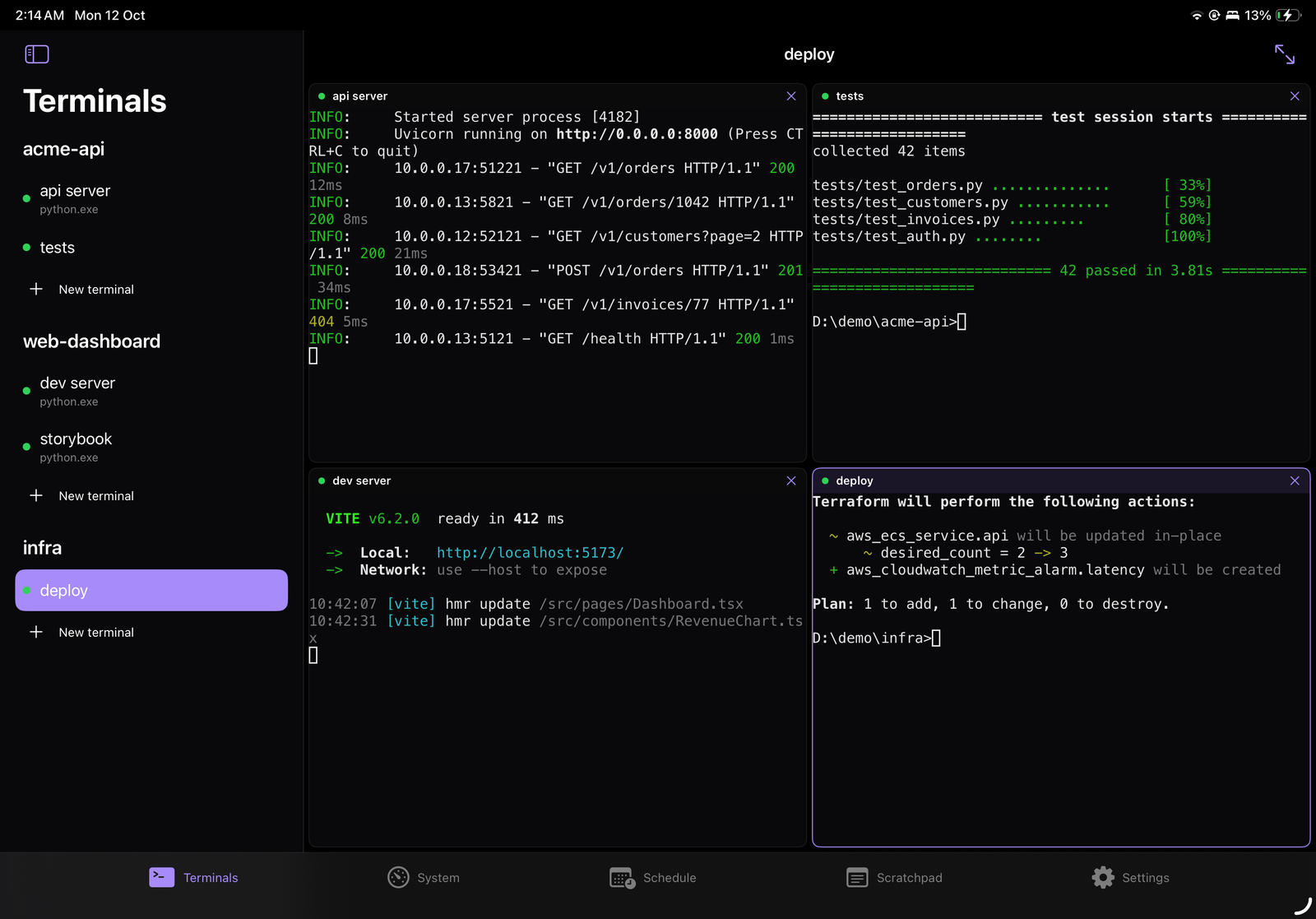
iPhone and iPad app. The native app in ios/ is built and installed from Windows + WSL with xtool. A free Apple ID is enough; no Mac or paid developer account. It has tabs for:
- Terminals (SwiftTerm) with each agent's state.
- System usage.
- Schedule (jobs and tasks).
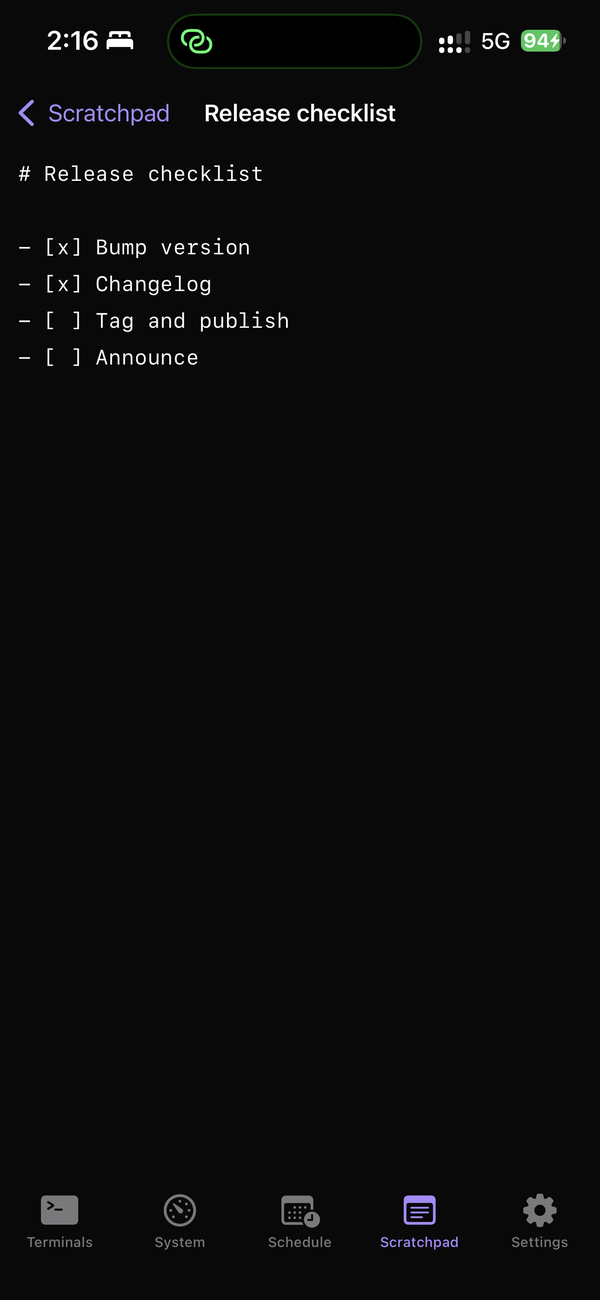
- Scratchpad.
- Settings (several PCs, alert sounds).
On iPad, projects sit in a sidebar with up to four tiled terminals beside it.
 |
 |
 |
 |
- Connecting. Scan the share's QR in the app once and allow the device. From then on it's a trusted device: it finds every new share by itself, with no QR or approval (the password is still asked). The new share address reaches it through ntfy.sh, encrypted with a key only your PC and the device hold.
- End-to-end encrypted. The share QR also carries the PC's public key, in the part of the link after
#, which never leaves the phone. All of the app's traffic (API calls, terminals, your password) goes through one X25519 + AES-256-GCM channel to that key, so Cloudflare and your Wi-Fi only see ciphertext. - Several devices. An iPhone and an iPad on the same Apple ID share their trusted PCs through iCloud Keychain.
- Managing them. The Devices page lists trusted devices and revokes them, and a new one raises an alert on the PC.
- Limits of a free Apple ID. The app has to be reinstalled every 7 days (
ios/scripts/install.sh), and alerts ring only while the app is open.
Setup, prerequisites and installing it for someone else: ios/README.md.
HTTPS on the VM's address: sd serve --host 0.0.0.0 --cert cert.pem --key key.pem. Plain HTTP on a non-local address is refused (--insecure-http overrides). A first visit from another machine also needs the setup code sd serve prints.
On phones, a key bar adds Esc, Tab, Ctrl and arrows, and dialogs open as bottom sheets.
- Local only. Binds to
127.0.0.1and rejects requests whoseHostorOriginisn't the app, so other websites can't reach your shells. Responses forbid framing, sniffing and referrers. - Password required. PBKDF2-SHA256 (600k iterations); logins are
HttpOnly,SameSite=Strictcookies stored as SHA-256; failed logins slow down; 30 minutes idle locks the browser. - One device at a time. Logging in elsewhere takes over and idles the rest; the Devices page revokes any login.
- The CLI uses a token file readable only by your account, rotated on every start.
- Sharing stays shut until you allow a device, after checking that its matching code is the one you see. Through the tunnel, responses send HSTS and the login cookie is
Secure. Trusted app devices skip only the approval, never the password; revoke them in Devices. - The iPhone/iPad app talks to the PC only through an end-to-end encrypted channel: X25519 + AES-256-GCM, with the PC's key pinned from the share QR. Neither the tunnel nor ntfy.sh can read or forge its traffic.
- Forgot the password? On the host:
sd login-link(one-time URL, 5 minutes) orsd reset-password. Never from the browser. - Your data lives in
~/.config/shelldeck/(SHELLDECK_HOMEmoves it).
Found a vulnerability? Report it privately; see SECURITY.md.
git clone https://github.com/codejunction/shelldeck && cd shelldeck
uv sync
uv run shelldeck --port 5466 serve     # dev server, http://127.0.0.1:5466
uv run pytest -q                       # includes a real PTY round trip
uv run ruff check
FastAPI and uvicorn, pywinpty (ConPTY) or the stdlib pty, SQLite, and plain HTML/CSS/JS with vendored xterm.js (no build step). See CONTRIBUTING.md.
MIT. xterm.js is MIT-licensed too (see shelldeck/static/vendor/LICENSE-xterm.txt).