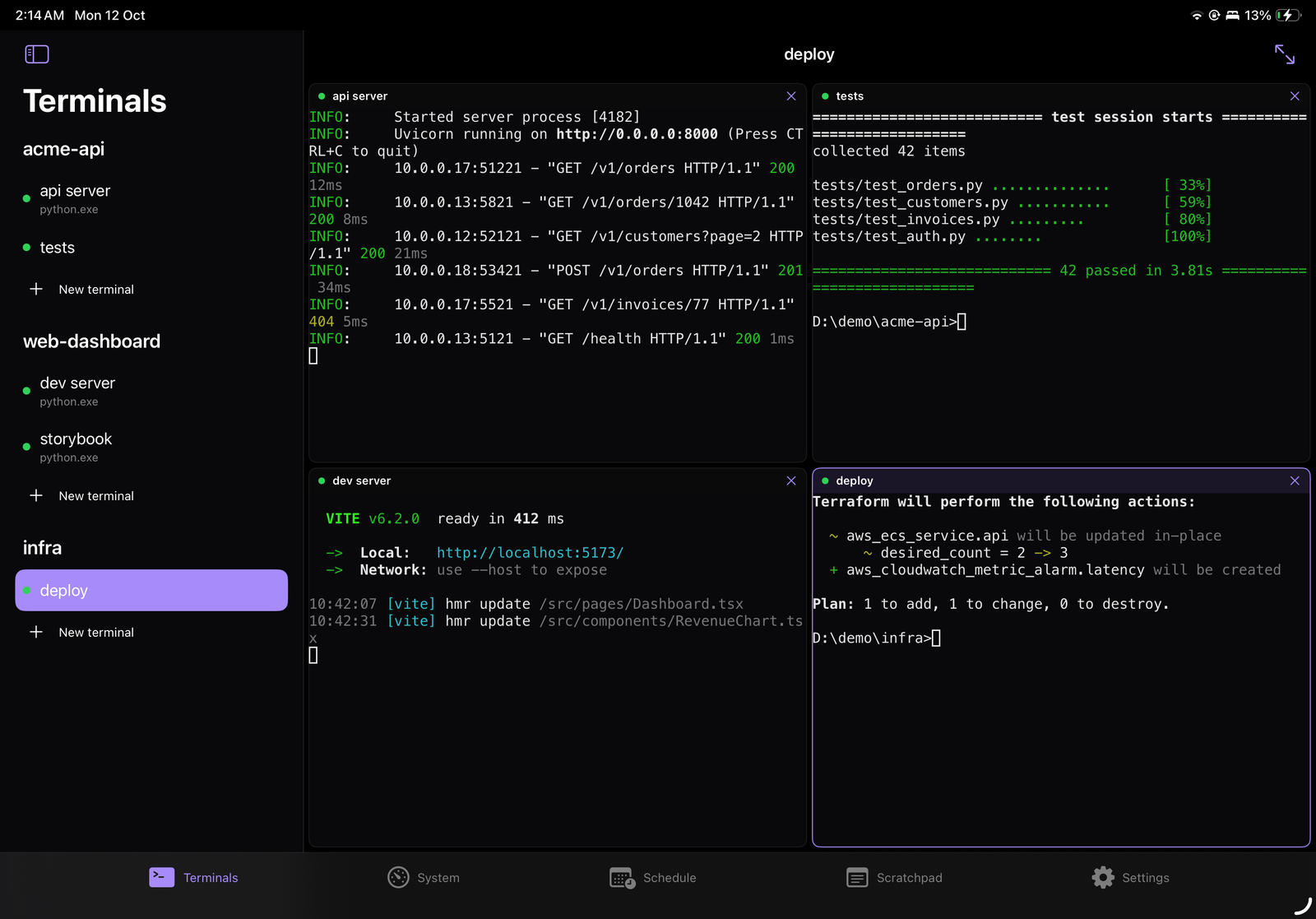
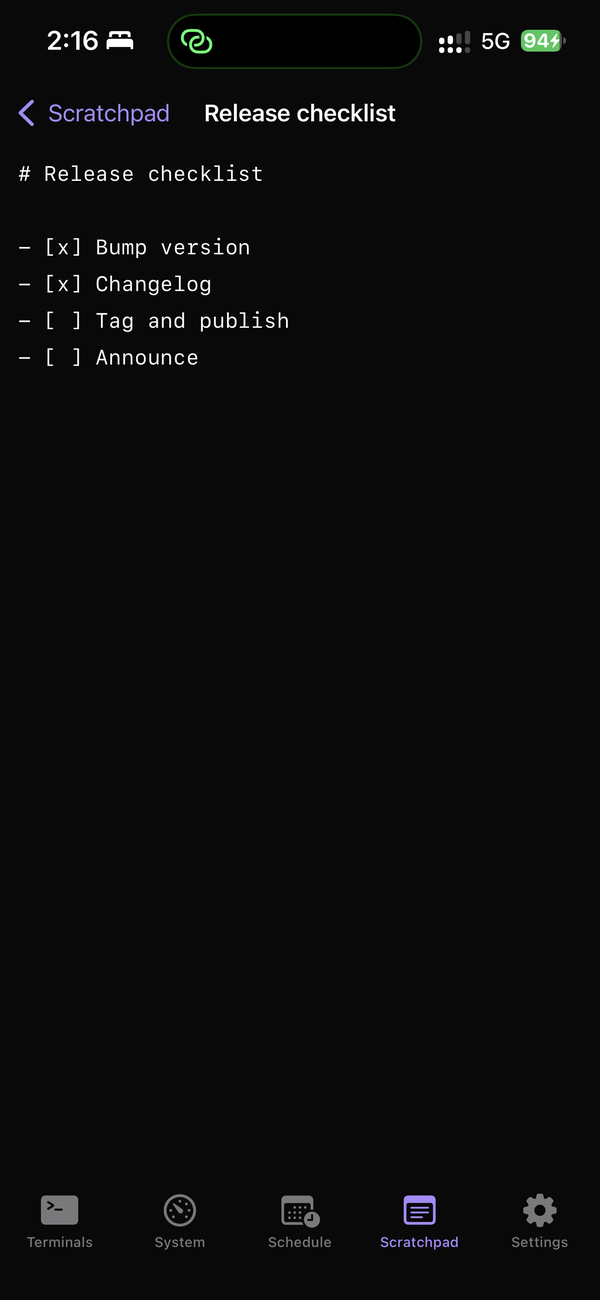
A native SwiftUI app for shelldeck. It shows your PC's terminals (opened with SwiftTerm), AI agent states, system usage, scheduled jobs and tasks, and the scratchpad. It rings when an agent needs you or finishes. On iPad, the Terminals tab looks like the web UI: projects in a sidebar, and up to four terminals tiled beside it.
It is built and installed from Windows with WSL using xtool. No Mac or paid Apple Developer account is needed; a free Apple ID is enough.
 |
 |
 |
 |

- How it connects
- What you need
- One-time setup
- Install the app
- Connect it to your PC
- Installing for someone else
- Limits of a free Apple ID
- Troubleshooting
- Layout of this folder
- At home: the app talks to the PC directly over Wi-Fi.
- Away:
- Start a share on the PC (
sd share, or the Share button). It runs a Cloudflare quick tunnel. - The first time, scan the share's QR code with the app, check that the 4-digit code matches, and allow the iPhone on the PC. From then on, the iPhone is a trusted device: it finds each new share by itself, with no QR code and no approval. Your password is still asked after 30 minutes idle and after each new share.
- The new share address reaches the phone through ntfy.sh, encrypted with a key only the PC and the phone have.
- Start a share on the PC (
- End-to-end encryption: everything the app sends goes through one encrypted channel to your PC: API
calls, terminals and your password.
- The PC's public key comes from the QR code. It sits after the
#in the link, a part that never leaves the phone. - So Cloudflare and your Wi-Fi only ever see ciphertext.
- Details:
shelldeck/e2e.pyandSources/Shelldeck/Channel.swift.
- The PC's public key comes from the QR code. It sits after the
- Trusted devices: the PC lists them in Devices → Trusted devices, where you can revoke one.
| PC | Windows 10/11 with WSL 2, plus about 25 GB free for Xcode's SDK (Ubuntu 24.04 is what this was tested on) |
| Windows apps | Apple Devices (Microsoft Store), and Python 3 (winget install Python.Python.3.13) for the USB bridge |
| Apple | A free Apple ID with two-factor authentication. Sign in at developer.apple.com once to accept the terms. |
| Xcode | Xcode_XX.xip, downloaded in a browser from https://developer.apple.com/download/all/?q=Xcode (needs the Apple ID). The app is built against its iOS SDK. |
| Device | An iPhone or iPad with iOS/iPadOS 17 or later, and a USB cable |
| shelldeck | 0.0.14 or later running on the PC |
All commands run inside WSL (open it with wsl -d Ubuntu-24.04) from this repository unless noted.
-
Install Swift, xtool and the iPhone tools:
sh ios/scripts/setup-wsl.sh
It installs:
- Swift via swiftly, and adds it to
~/.profileand~/.bashrc. - The xtool AppImage, into
/usr/local/bin. usbmuxd,libimobiledevice-utilsandsocat.pymobiledevice3, through uv.
It asks for your WSL
sudopassword, and is safe to run again. - Swift via swiftly, and adds it to
-
Sign in to Apple:
xtool auth login
Pick Password, enter your Apple ID, then the 2FA code. Only you should type this. The session lasts about a year (
xtool auth status). -
Install the iOS SDK from the Xcode download. The path can point straight into Windows' Downloads folder:
xtool sdk install /mnt/c/Users/<you>/Downloads/Xcode_27.xip
swift sdk list        # should list: darwin
This takes a while (it unpacks Xcode).
-
Connect the iPhone through Windows:
-
Open Apple Devices on Windows, plug in the phone, unlock it and tap Trust.
-
Then, in WSL:
sh ios/scripts/bridge.sh
It prints the phone's id and iOS version when it works. Run it again after every WSL restart.
Why not usbipd? Passing the phone into WSL with usbipd-win works for pairing, but Linux usbmuxd then sends 65536-byte USB packets and iOS accepts at most 65535, so installs stop with
opTimeout(usbmuxd#247). The bridge uses Apple's own usbmuxd on Windows instead. If you tried usbipd before, give the phone back to Windows first:usbipd unbind --busid <id>(admin). -
-
Turn on Developer Mode on each iPhone or iPad, once. iOS only installs apps signed with your Apple ID when it's on. The switch is hidden until a computer asks for it, so:
-
With the device plugged in and unlocked, reveal the switch:
sh ios/scripts/install.sh --devmode            # the only device connected
sh ios/scripts/install.sh --devmode <udid>     # one of several (idevice_id -l lists them)
-
On the device, close Settings completely: swipe up, pause, and swipe Settings away. It only rereads the option on a fresh launch, so an open Settings won't show it.
-
Open Settings → Privacy & Security, scroll to the very bottom (the Security group), and tap Developer Mode. Switch it on, then tap Restart.
-
After the restart, unlock the device, tap Turn On in the prompt, and enter the passcode.
-
Check it from WSL. This should print
true:ideviceinfo -u <udid> -q com.apple.security.mac.amfi -k DeveloperModeStatus
- The switch still isn't there? Run the
--devmodestep again with the device unlocked, then fully close and reopen Settings. Trying an install (install.sh) also makes it appear. - A device without a passcode can be switched on straight from WSL. This restarts it:
pymobiledevice3 amfi enable-developer-mode --udid <udid>. iOS refuses this when a passcode is set; then use the switch in Settings. - iPad: same steps; the switch is in the same place in iPadOS.
-
sh ios/scripts/install.sh            # the connected phone or iPad
sh ios/scripts/install.sh <udid>     # one of several (idevice_id -l)
The script:
- Fetches SwiftTerm, pinned to a reviewed commit (
vendor.sh; see the note there on why it isn't a package dependency). - Builds a release build.
- Signs it with your Apple ID and installs it.
The first time, on the device: Settings → General → VPN & Device Management → your Apple ID → Trust. Then open shelldeck.
Day to day, xtool dev in ios/ builds a debug build and installs it.
- Away from home, or the first time:
- On the PC, run
sd share(or use the Share button in the web UI). - In the app, tap Scan share QR and scan the code.
- The app and the PC both show a 4-digit code. Allow the device only if they match.
- Log in with your password.
- On the PC, run
- At home, without a share:
- Run
sd serve --host 0.0.0.0 --insecure-httpon the PC, and type<pc-ip>:5455in the app. - The app still encrypts end to end. On Wi-Fi it learns the PC's key the first time it connects, so prefer the QR code on an untrusted network.
- Run
- Several PCs: add each one under Settings → Add a PC, and switch between them there.
- iPhone and iPad together: the trusted PCs are kept in iCloud Keychain, so a PC set up on your
iPhone also appears on your iPad (and back), with no second QR code.
- Each device still logs in with the password.
- The PC sees them as one trusted device, so revoking it signs out both.
- Needs iCloud Keychain switched on (Settings → your name → iCloud → Passwords and Keychain), and the
same Apple ID on both devices and in
xtool auth login. - If the iPad starts on the connect screen, give the sync a minute and tap Retry.
- Alerts: in Settings → Alerts (agent needs you / agent finished).
The app has to be signed for each device. Pick one of these:
-
Their phone, your PC, your Apple ID.
- Plug their phone into your PC (Apple Devices, Trust).
- Run
sh ios/scripts/bridge.sh. The first time, runsh ios/scripts/install.sh --devmode <their udid>and have them turn on Developer Mode (step 5). Then runsh ios/scripts/install.sh <their udid>. - Their phone is then registered to your free Apple ID, and they trust your Apple ID in VPN & Device Management.
- It expires after 7 days like yours, and their phone must be plugged into your PC to renew it.
-
Their own Apple ID, on your PC.
- Let them run
xtool auth logout && xtool auth loginthemselves, then install as above. - Run
xtool auth loginagain for your own account afterwards. Don't type someone else's Apple ID password for them.
- Let them run
-
Their own setup. They follow this README on their own Windows PC. This is the only option where they can renew the app without you.
-
An
.ipathey sign themselves:sh ios/scripts/build-ipa.sh # writes ios/xtool/Shelldeck.ipa (unsigned)They install it with their own tool and Apple ID: Sideloadly, AltStore, or
xtool install Shelldeck.ipaon their own xtool.
Whichever way, they then connect the app to a shelldeck. That's their own PC, or yours if you share it and approve their device; they then need your password.
- Expiry: apps stop opening after 7 days. Run
install.shagain; settings, trust and logins are kept. - Number of apps: at most 3 sideloaded apps per device, and 10 app IDs per week per Apple ID. If you made test apps, delete them on the phone.
- No push notifications (that needs a paid account). Alerts ring while the app is open or was just in use; a locked phone stays quiet.
- To lift all of these, enrol in the Apple Developer Program, $99 a year.
| Problem | Fix |
|---|---|
bridge.sh: no iPhone |
Open Apple Devices on Windows, unlock the phone, tap Trust; replug the cable. |
opTimeout while installing |
You are on usbipd, not the bridge: usbipd unbind --busid <id>, replug, bridge.sh. |
noDevice |
The phone locked or the cable dropped. Unlock, replug, run bridge.sh again. |
DeveloperModeStatus false |
sh ios/scripts/install.sh --devmode [udid], fully close and reopen Settings, then turn it on (Privacy & Security, at the bottom). |
| No Developer Mode switch in Settings | Unlock the device, run --devmode again, then swipe Settings away and reopen it. |
Cannot enable developer-mode when passcode is set |
Expected: with a passcode, only the switch in Settings can turn it on. |
| App won't open: "Untrusted Developer" | Settings → General → VPN & Device Management → Trust. |
| App won't open after a week | Free Apple ID expiry: install.sh again. |
| "Scan the share QR once more…" | That PC was trusted before end-to-end encryption existed; scan a new share QR. |
| App can't find the PC away from home | Is sd share running? The app finds new shares through ntfy.sh within seconds of a share starting. |
swift: command not found |
Open a new WSL shell, or . ~/.local/share/swiftly/env.sh. |
Package.swift, xtool.yml, Info.plist |
the app's package, bundle id dev.shelldeck.remote, and its Info.plist (iPhone + iPad, camera, local network) |
Sources/Shelldeck/ |
SwiftUI app: ShelldeckApp (flow), Channel (end-to-end encryption), Server (API), Trust (trusted PCs in the Keychain), Model (polling, alarms, alerts), TerminalScreen (SwiftTerm, iPad panes), and one view per tab |
vendor.sh |
fetches SwiftTerm into Vendor/ (gitignored) |
scripts/ |
setup-wsl.sh, bridge.sh + muxrelay.py, install.sh, build-ipa.sh |