

- A global shortcut that opens Onyx from any app
- Quick launch from the menu bar or system tray
- Multiple windows, with window size and position remembered between sessions
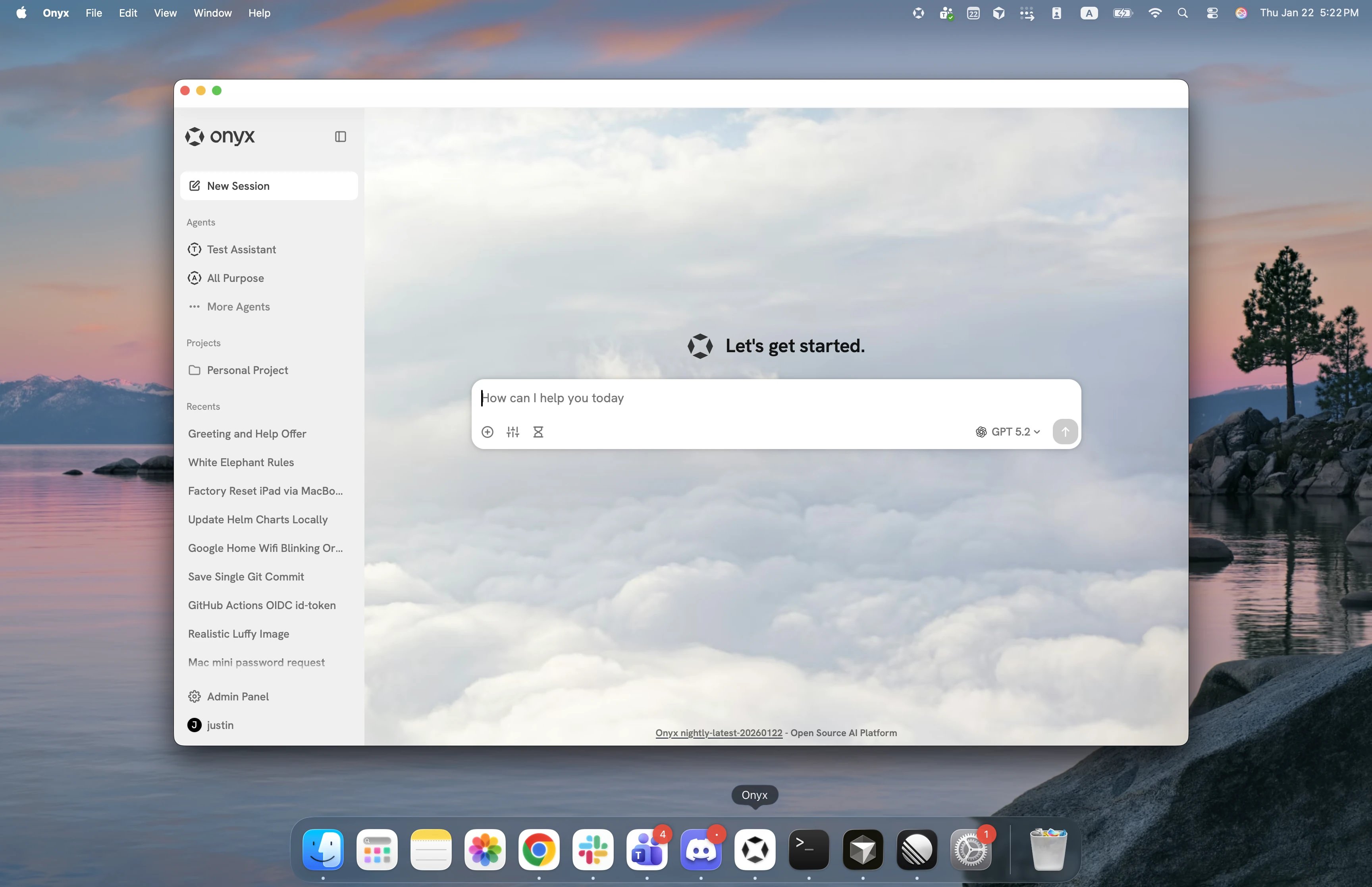
The desktop app shows the same Onyx web app in a native window. It is available on all editions.
Download
Windows
Download .exe
macOS
Download .dmg
Linux
Download .deb
Getting Started
For Onyx Cloud users: Download the app from the links above. It connects tohttps://cloud.onyx.app by default.
For self-hosted users: Point the app at your Onyx server. If the app cannot reach a server,
it shows a Settings page. Enter your server URL and select Save & Connect.
You can also edit the config file. Select Open Config File from the app menu (Cmd+, on macOS,
Ctrl+, on Windows and Linux), change server_url, and restart the app:
- macOS:
~/Library/Application Support/app.onyx.onyx-desktop/config.json - Linux:
~/.config/onyx-desktop/config.json - Windows:
%APPDATA%\onyx\onyx-desktop\config\config.json
Summon Onyx from anywhere
Press the summon shortcut to bring Onyx to the front from any app:- macOS:
Cmd+Shift+Space - Windows and Linux:
Ctrl+Alt+Space
summon_shortcut in the config file.
Set it to null to turn the shortcut off.