Get the Raw WMS Request Generated by QGIS
-
since QGIS Pi / 3.14 you just press F12 on your keyboard to open the "Debugging/Development Tools" panel (no plugins needed!)
- click on the "Network Logger" icon on the left-side of that panel
- make sure to click on the "Record Log" button in the top of that panel
-
from QGIS 3.6 upto 3.14 you would use the "QGIS Network Logger" plugin: https://plugins.qgis.org/plugins/qgisnetworklogger/
- once you install the plugin, you can open it through the menu: Plugins / QGIS Network Logger
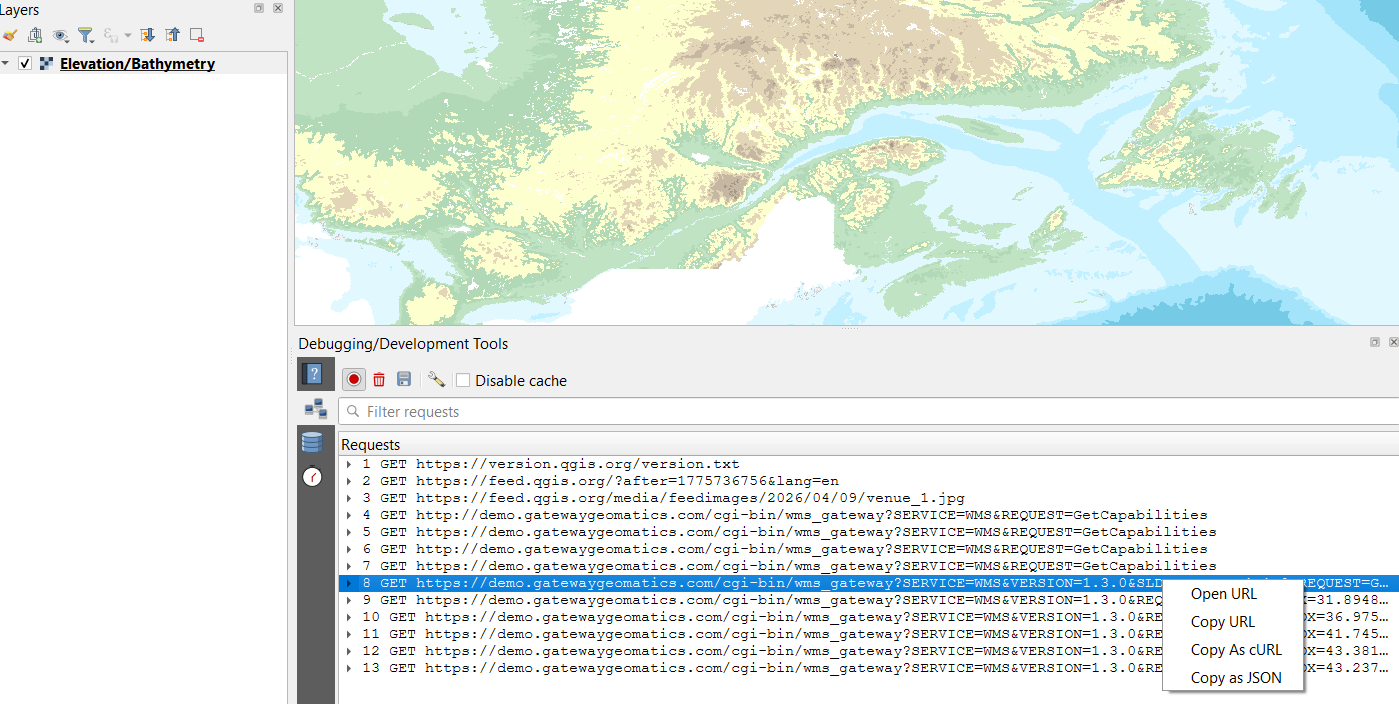
-
Or, here is an alternative method to capture requests:
- download and install the software "Fiddler" (Google will help you find its current download location)
- start Fiddler and leave it running
- in QGIS goto /Settings/Options/Network
- click on "Use proxy for web access"
- for Proxy Type select "HttpProxy"
- for Host enter: 127.0.0.1
- for Port enter: 8888
- presss "ok" button
- now Add a WMS/WFS/WCS layer in QGIS again, but watch the Fiddler window
- click on the request in Fiddler (such as GetCapabilities, GetMap, or GetCoverage)
- to see the full requested url in Fiddler, check the 'Inspector' tab, and then select 'Raw'
- then you can copy the raw url into a new browser window, load it, and examine the error and the url parameters
This is a handy trick especially when debugging MapServer services. (beware that QGIS caches the service though, see previous warnings by me for that).